

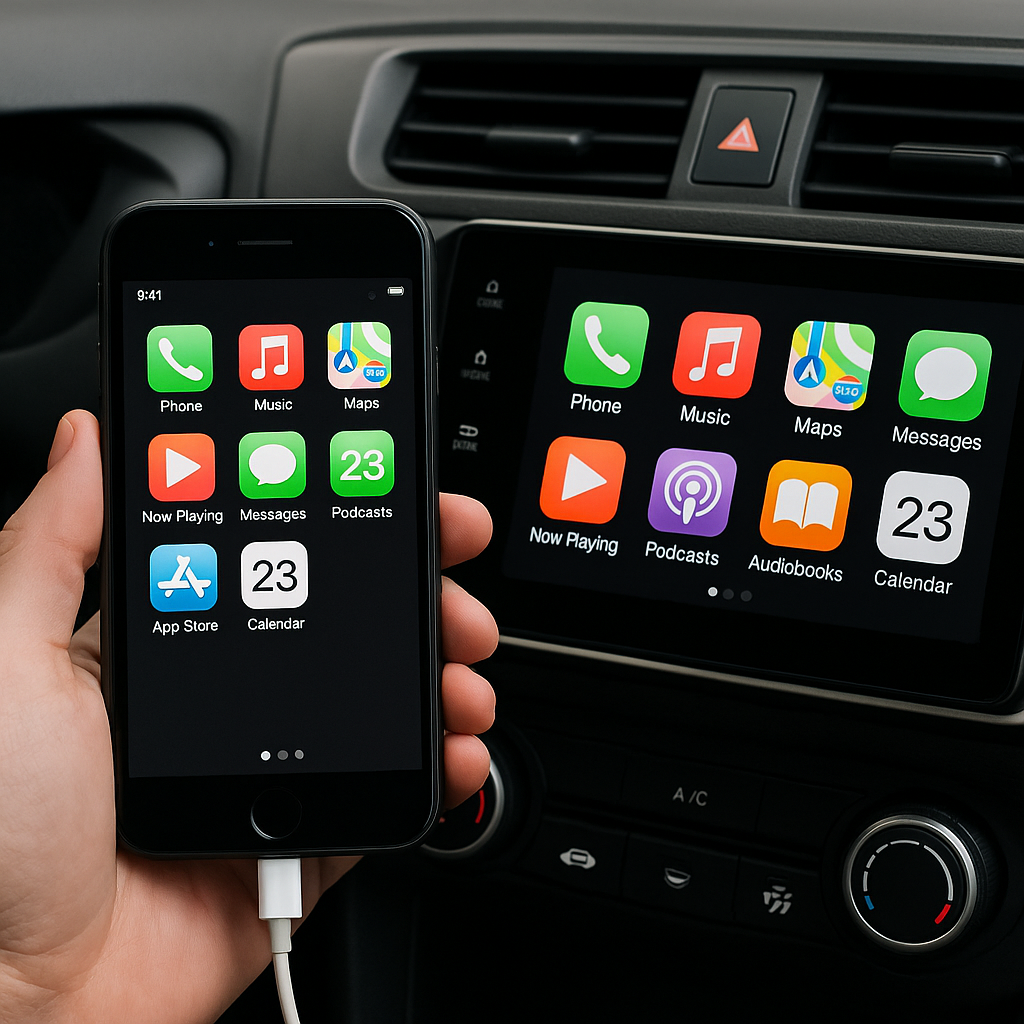
Connecting your iPhone to your car has become essential for modern driving—whether it’s for music, maps, hands-free calls, or just staying connected safely. If you’re wondering how to connect iPhone to car, the good news is there’s more than one way to do it—and we’re here to break them all down for you, clearly and thoroughly.
In this guide, we’ll cover everything: Bluetooth, USB cables, Apple CarPlay (both wired and wireless), and even some clever workarounds for older vehicles. So, no matter what type of car you have or how old your iPhone is, there’s a method here that should work for you.
Why Connect Your iPhone to Your Car in the First Place?
Before diving into the how, it helps to understand the why. Connecting your iPhone allows for a seamless in-car experience. You can take calls without holding your phone, play your favorite music or podcasts, navigate with Apple Maps, and even use Siri—all while keeping your hands on the wheel and your eyes on the road.
If you also use Android devices, here’s the complete guide on how to connect your phone to your car.
Method 1: Using Apple CarPlay
Apple CarPlay is the most seamless way to use your iPhone in your car, provided your vehicle supports it.
Wired Apple CarPlay
Most vehicles that support CarPlay require a USB connection.
Steps to Connect via USB:
- Start your car and make sure it’s in Park.
- Plug your iPhone into the car’s USB port using a Lightning to USB cable.
- A prompt should appear on your iPhone asking if you want to allow CarPlay—tap Allow.
- Your car’s infotainment screen should switch to the CarPlay interface.
This method is extremely reliable and doesn’t drain your phone’s battery as it charges while connected.
Wireless Apple CarPlay
Some newer vehicles support wireless CarPlay.
To Set Up Wireless CarPlay:
- Ensure your car supports wireless CarPlay (check the manual or manufacturer’s website).
- On your iPhone, go to Settings > General > CarPlay.
- Put your car in Bluetooth pairing mode.
- Your iPhone should detect the car. Tap it and follow the prompts.
- Once connected, CarPlay will automatically activate when you start the car in the future.
Wireless CarPlay gives you the same rich experience as the wired version—without the cable.
Method 2: Using Bluetooth Connection
If your car doesn’t support Apple CarPlay, Bluetooth is the next best option. This allows you to stream music and take calls, but you won’t have access to full CarPlay features like Siri or app icons on your infotainment screen.
How to Connect iPhone to Car via Bluetooth:
- Turn on Bluetooth on your iPhone (Settings > Bluetooth)
- Enable Bluetooth pairing mode on your car’s audio system.
- Look for your car’s name under Other Devices on your iPhone and tap to connect.
- If a passkey appears on both devices, confirm that it matches and tap Pair.
This method works well for basic connectivity and is supported by most vehicles manufactured in the last decade.
Method 3: Using a USB Cable Without CarPlay
Some cars don’t support Apple CarPlay but still allow media playback or charging via USB.
Steps:
- Plug your iPhone into your car’s USB port.
- Set the car’s audio source to USB.
- Open the Music or Podcasts app on your iPhone and start playback.
Depending on the system, you may be able to control playback via your car’s dashboard, though this varies by model.
Method 4: Using an AUX Cable
For older cars without Bluetooth or USB ports, a good old-fashioned AUX cable still works.
Here’s how:
- Plug a 3.5mm AUX cable into your iPhone using a Lightning to headphone jack adapter.
- Plug the other end into your car’s AUX port.
- Switch your car’s audio source to AUX.
- Play music from your iPhone—it should come through the car’s speakers.
Keep in mind, you won’t be able to take calls through the car system unless you use a Bluetooth adapter as well.
Method 5: Using an FM Transmitter
If your car doesn’t have Bluetooth or AUX but does have a working FM radio, an FM transmitter can help.
To Connect iPhone Using an FM Transmitter:
- Plug the transmitter into your car’s cigarette lighter.
- Connect your iPhone via Bluetooth or AUX (depending on transmitter model).
- Set the transmitter and your radio to the same unused FM frequency.
- Start playing audio from your iPhone.
It’s a clever workaround, especially for older cars, and you can find FM transmitters for less than $30 online.
Tips for a Better Experience
- Update iOS regularly: Some connection issues are solved with iOS updates.
- Use certified accessories: Third-party Lightning cables can sometimes cause issues.
- Don’t forget to enable Siri: Especially useful for voice commands on CarPlay.
- Mount your phone properly: For safety and legal reasons, especially if you don’t have CarPlay.
Frequently Asked Questions (FAQs)
1. Why isn’t my iPhone connecting to my car via Bluetooth?
Double-check if Bluetooth is enabled on both devices. Also, try deleting the pairing and reconnecting from scratch. Restarting your phone and infotainment system can also help.
2. Can I use CarPlay with an aftermarket stereo?
Yes, there are many aftermarket head units (from brands like Pioneer, Kenwood, and Alpine) that support Apple CarPlay. Just make sure it’s compatible with your car.
3. Does CarPlay use cellular data?
CarPlay itself doesn’t use data, but apps like Apple Maps, Spotify, and Messages will use your phone’s cellular connection. If you’re concerned about data usage, download offline maps or playlists beforehand.
4. Why is my iPhone not showing up on CarPlay?
Check your USB cable first. If that’s not the issue, go to Settings > General > CarPlay and remove the car, then try connecting again. Also, ensure CarPlay is allowed while the phone is locked.
5. What’s the difference between CarPlay and Bluetooth?
CarPlay offers a more integrated and app-focused interface, including Siri, navigation, and messaging. Bluetooth is more limited—mainly used for audio streaming and hands-free calls.
Conclusion: How to Connect iPhone to Car Made Easy
Knowing how to connect iPhone to car gives you access to a smarter, safer, and more enjoyable driving experience. Whether you go for Apple CarPlay, Bluetooth, USB, or even an FM transmitter, there’s a solution that fits your vehicle setup. Just follow the steps that match your car’s features, and you’ll be cruising in no time—with your iPhone riding shotgun.
Read Next: How to Connect Alexa to iPhone: Quick Guide for All Users


Leave a Reply