

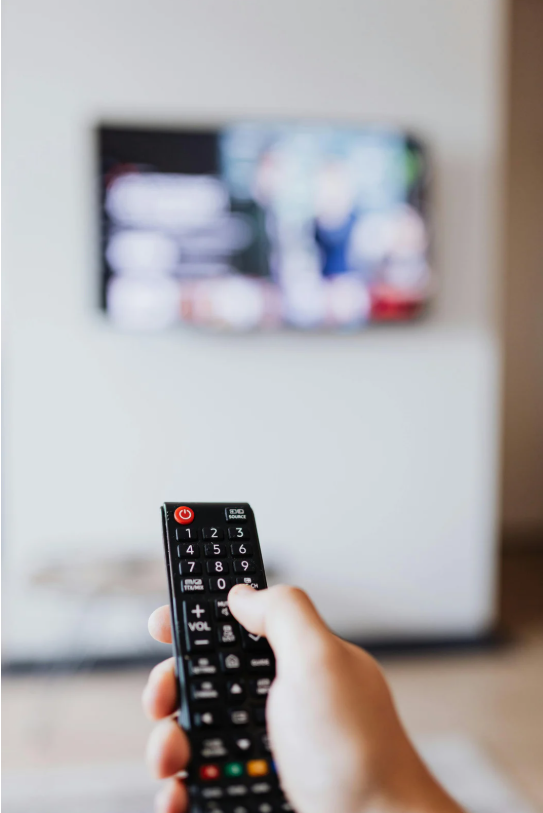
Upgrading your Samsung Smart TV ensures you have the latest features, enhanced performance, and improved security. This guide will walk you through various methods to upgrade your Samsung Smart TV, whether it’s updating the software, firmware, or adding new features.
Why Upgrade Your Samsung Smart TV?
Keeping your Samsung Smart TV up to date offers several benefits:
- Bug fixes and security patches to protect against vulnerabilities.
- Improved performance with optimized system functions.
- New features such as enhanced voice controls, streaming apps, and interface improvements.
- Better compatibility with external devices and apps.
Method 1: Upgrade Samsung Smart TV via Internet (OTA Update)
This is the easiest and most recommended method, as it ensures you get the latest official update directly from Samsung.
Steps:
- Turn on Your Samsung Smart TV and ensure it is connected to the internet (Wi-Fi or Ethernet).
- Go to Settings: Press the Home button on your remote and navigate to Settings.
- Select Support: Scroll down and choose Support.
- Choose Software Update: Click on Software Update > Update Now.
- Wait for the Update to Download and Install: Your TV will restart automatically after the upgrade is complete.
Tip: Enable Auto Update under Software Update so your TV updates automatically when a new version is available.
Method 2: Upgrade Samsung Smart TV via USB Drive
If your TV isn’t connected to the internet or the OTA update fails, you can manually upgrade your Samsung Smart TV using a USB drive.
Steps:
- Go to Samsung’s Official Website: Visit Samsung Support and enter your TV model number.
- Download the Latest Firmware: Navigate to the downloads section and download the latest firmware update.
- Extract the File: Unzip the downloaded file and copy the extracted folder/s to a USB drive. Make sure you do not place the files inside another folder in the flashdrive to avoid errors.
- Insert USB into the TV: Plug the USB drive into the USB port of your Samsung Smart TV.
- Initiate the Update:
- Go to Settings > Support > Software Update.
- Select Update Now and choose USB Update.
- Follow the On-Screen Instructions: Your TV will detect the firmware and begin the update process.
Note: Do not turn off your TV or remove the USB drive during the update process.
Method 3: Upgrade Samsung Smart TV Apps
Software updates do not always update apps automatically. To keep apps like Netflix, YouTube, or Disney+ up to date, follow these steps:
Steps:
- Go to Smart Hub: Press the Home button and select Apps.
- Open the App Settings: Highlight the app you want to update and press Enter.
- Select Update: If an update is available, you will see an Update button. Click it to install the latest version.
- Enable Auto Update (Optional): Go to Apps > Settings and turn on Auto Update to keep apps updated automatically.
Method 4: Upgrade Samsung Smart TV Features via External Devices
If your Samsung Smart TV does not support certain apps or features, you can enhance its functionality by using external devices.
Options:
- Streaming Devices: Plug in devices like Amazon Fire Stick, Roku, or Apple TV for access to more apps.
- Game Consoles: PlayStation and Xbox consoles can also add streaming capabilities.
- Google Chromecast: Allows you to cast content from your smartphone or laptop to your TV.
Troubleshooting Common Upgrade Issues
TV Won’t Update
- Ensure your internet connection is stable.
- Restart your TV and try again.
- If updating via USB, confirm that you extracted the files correctly.
Apps Are Not Updating
- Sign out and sign back into your Samsung account.
- Clear cache by restarting the TV.
- Reinstall the problematic app.
TV Is Slow After an Update
- Perform a factory reset: Settings > General > Reset.
- Check for another update in case of a faulty installation.
Conclusion
Upgrading your Samsung Smart TV ensures a smoother experience, better security, and access to the latest features. Whether you update via the internet, USB, or by upgrading apps, keeping your TV updated guarantees peak performance. Follow the methods in this guide to enjoy an optimized viewing experience.
Did this guide help you? Let us know in the comments, and share it with others looking to upgrade their Samsung Smart TV!
Read More: Remote Control for Samsung TV Not Working? Here’s How to Fix It
Leave a Reply