


Screenshots are a quick and easy way to capture information on your screen—whether you’re saving a receipt, grabbing an image from a website, or documenting a bug. If you’re wondering how to take screenshots on Windows 11, this comprehensive guide covers all the methods available on the latest Windows OS.
If you need guidance on installing Windows 11, read this installation guide.
Regardless if you’re a casual user or a power user, Windows 11 offers multiple built-in tools and shortcuts to help you snap and save your screen efficiently. Let’s dive into the various ways you can capture your screen in Windows 11.
Method 1: Screenshots Using Keyboard Shortcuts
A. Print Screen (PrtScn)
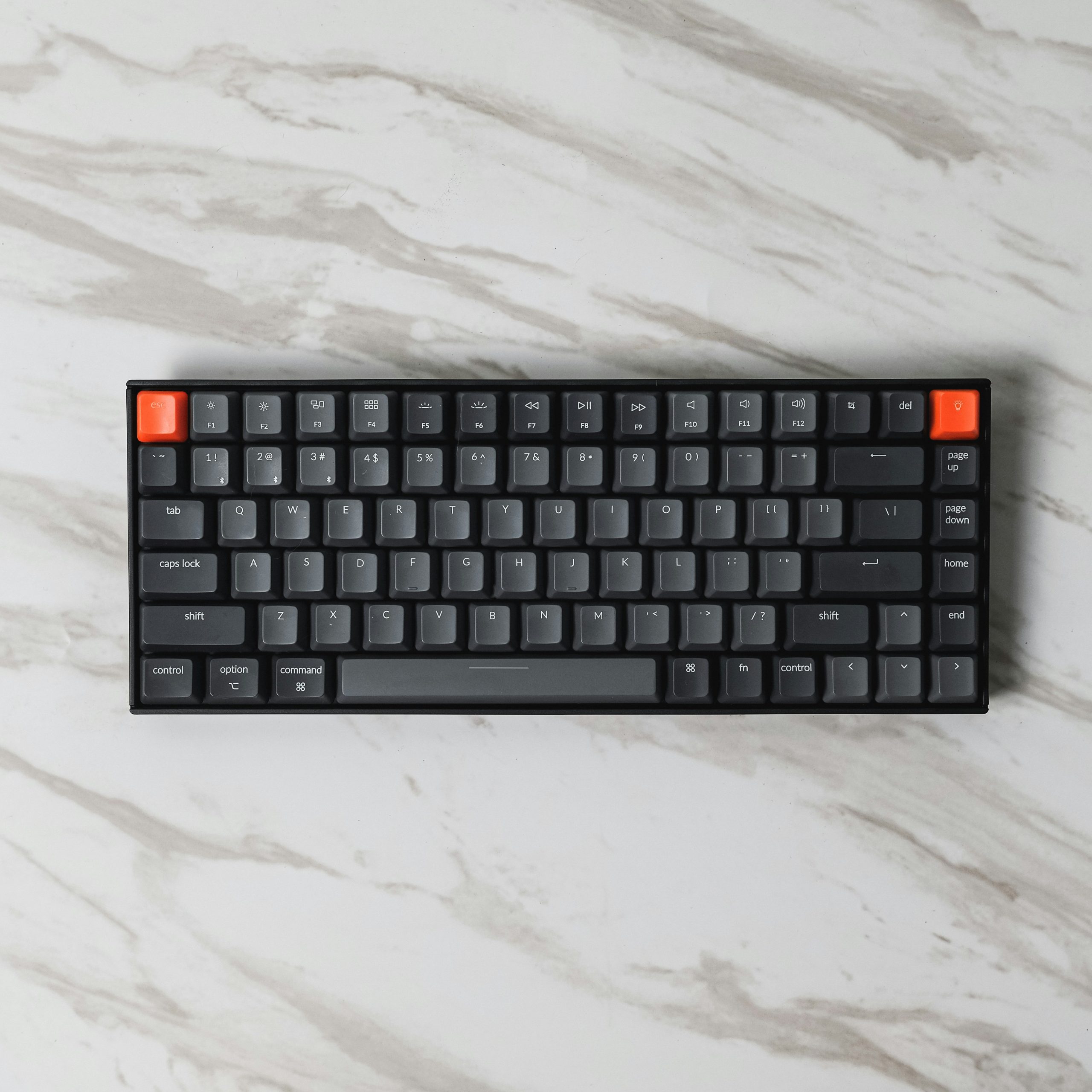
The Print Screen button is the classic method for taking screenshots in Windows.
- PrtScn: Captures the entire screen and copies it to the clipboard. You can then paste it into an image editor like Paint or a document.
- Alt + PrtScn: Captures the currently active window and copies it to the clipboard.
- Windows + PrtScn: Takes a screenshot of the entire screen and saves it automatically in the Screenshots folder under Pictures.
Tip: If you’re using a laptop, you might need to press Fn + PrtScn depending on your keyboard layout.
B. Windows + Shift + S (Snipping Tool Shortcut)
This shortcut launches Snip & Sketch or the modern Snipping Tool, giving you more control over your screenshots:
- Rectangular Snip: Drag a box to select what to capture.
- Freeform Snip: Draw a custom shape.
- Window Snip: Capture a specific app window.
- Full-screen Snip: Capture the entire screen.
Captured images are copied to your clipboard and also open in the Snipping Tool editor for annotation and saving.
Method 2: Screenshots Using the Snipping Tool App
Windows 11 now merges the old Snipping Tool and Snip & Sketch into a modern Snipping Tool with advanced features.
How to Open:
- Press Start, type Snipping Tool, and open the app.
- Or press Windows + Shift + S as a shortcut.
Features:
- Delay snips by 3, 5, or 10 seconds.
- Choose snip type (rectangular, freeform, window, full-screen).
- Annotate with pen, highlighter, and eraser tools.
- Save, copy, or share the screenshot.
If you’re exploring how to take screenshots on Windows 11 with more precision, this tool is a top choice.
Method 3: Screenshots Using the Xbox Game Bar
Ideal For: Capturing in-game content or video apps
Windows 11 includes the Xbox Game Bar, originally designed for gamers but useful for any screen capture task.
How to Use:
- Press Windows + G to open the Game Bar.
- Click the Capture widget (camera icon).
- Click the Screenshot button or press Windows + Alt + PrtScn.
Screenshots are saved automatically under Videos > Captures.
Method 4: Screenshots Using Microsoft PowerPoint or Word
Screenshots in Documents:
If you’re already in Microsoft PowerPoint or Word, you can insert screenshots directly into your document.
Steps:
- Go to Insert > Screenshot.
- Choose a window to capture or use Screen Clipping for partial capture.
This is perfect for presentations, reports, or documentation.
Method 5: Screenshots Using Third-Party Tools
If you’re looking for more customization, annotation options, or cloud storage, consider these third-party apps:
Snagit
- Paid but powerful.
- Offers advanced editing, scrolling screenshots, and templates.
Lightshot
- Lightweight and free.
- Lets you quickly edit and share screenshots.
ShareX
- Free and open source.
- Packed with automation, uploading, and advanced features.
Third-party tools expand your options beyond what’s built into Windows 11, making them great for professionals and creators.
Where Are Screenshots Saved on Windows 11?
- Windows + PrtScn: Saved under C:\Users[YourName]\Pictures\Screenshots
- Game Bar: Saved under C:\Users[YourName]\Videos\Captures
- Snipping Tool: Lets you choose where to save the file
- Clipboard: Use Ctrl + V to paste into Paint, Word, or any image editor
Final Tips and Troubleshooting
- Can’t find your screenshot? Check your clipboard or default save folders.
- Using multiple monitors? Some shortcuts capture all screens—use Snipping Tool for more control.
- Screenshots not saving? Make sure you’re not in restricted mode (e.g., some video playback apps disable screenshot functions for privacy reasons).
Conclusion
There are many ways to learn how to take screenshots on Windows 11, from keyboard shortcuts to built-in apps like the Snipping Tool and Xbox Game Bar. Whether you’re grabbing a quick snap for social media or documenting a software issue, Windows 11 makes it easier than ever to capture your screen.
Find the method that fits your workflow and make the most of your screenshotting skills!
Read Next: How to FaceTime on Android: Complete Guide



Leave a Reply