
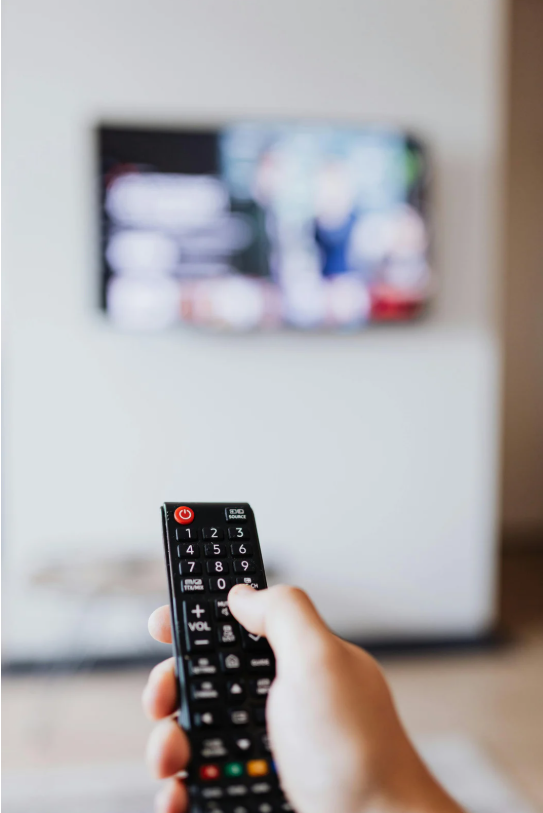
If your Roku remote suddenly stops working with your TV, it can be frustrating—especially when you’re ready to stream your favorite show. From dead batteries to signal interference or pairing issues, there are several possible causes behind a non-responsive Roku remote. The good news? Most of these problems have simple fixes.
This post will walk you through every effective method to troubleshoot and resolve issues when your Roku remote is not working with your TV, so you can get back to streaming quickly.
Types of Roku Remotes: Know What You’re Working With
Before jumping into the fixes, it’s helpful to identify the type of Roku remote you have:
- Standard IR (Infrared) Remote – Sends signals via a line-of-sight beam to your Roku device.
- Enhanced “Point-Anywhere” Remote – Uses Wi-Fi Direct and doesn’t need a direct line of sight.
Some Roku TV remotes come with voice control or headphone jacks, while others are basic. Knowing your remote type helps narrow down the right fix.
Quick Fixes: What to Do When Roku Remote Stops Working
Many remote issues boil down to simple power or connection problems. Here’s how to troubleshoot:
1. Check or Replace the Batteries
This might sound obvious, but weak or dead batteries are the most common culprit.
Steps:
- Open the battery compartment and replace both batteries.
- Use high-quality AA or AAA batteries (depending on your model).
- After replacing, try using the remote again.
2. Restart Your Roku Device and TV
A simple restart can refresh the connection.
Steps:
- Unplug the Roku device and your TV from power.
- Wait for at least 10 seconds.
- Plug them back in and turn everything on.
- Try using the remote.
3. Re-Pair the Roku Remote (Enhanced Remote Only)
If you’re using a Wi-Fi remote, you may need to re-pair it.
Steps:
- Remove batteries from the remote.
- Unplug the Roku device and wait 10 seconds.
- Plug the Roku back in and wait until it finishes booting.
- Reinsert the batteries.
- Press and hold the pairing button (inside the battery compartment) for 5 seconds or until the pairing light starts flashing.
- Wait for the Roku to confirm pairing.
4. Check for Obstructions (IR Remotes Only)
If you’re using an infrared remote, the path between the remote and Roku receiver must be clear.
What to Do:
- Remove anything blocking the signal path.
- Clean the front of the Roku box and remote sensor area.
5. Use the Roku Mobile App as a Temporary Remote
Until your physical remote works again, the free Roku app can save the day.
How to Use:
- Download the Roku app on your smartphone (iOS or Android).
- Connect it to the same Wi-Fi network as your Roku device.
- Tap Remote in the app to start controlling your Roku.
Troubleshooting Section: When the Basics Don’t Work
Sometimes, the issue isn’t your remote—it’s your Roku device or network. Here’s what to check:
1. Is Your Roku Device Frozen?
If the device is stuck, the remote won’t respond.
Fix: Unplug the Roku, wait 10 seconds, and plug it back in.
2. Is the Remote Overheating?
Excessive use or blocked ventilation can cause overheating.
Fix: Let it rest for 15–20 minutes and try again.
3. Are You Using a Universal Remote?
Not all universal remotes are fully compatible with Roku TVs.
Fix: Make sure the universal remote is programmed correctly or use the official Roku remote.
4. Remote Keeps Unpairing After Restart
Your Roku remote may lose pairing when batteries are low or during power cuts.
Fix: Re-pair the remote using the pairing steps above and ensure a stable power supply to your Roku.
When to Replace Your Roku Remote
If none of the fixes work, it may be time for a replacement. Look for:
- No pairing light when holding the pairing button
- Buttons not physically clicking or responding
- Corroded battery contacts
Tip: You can buy a replacement Roku remote online or use the Roku app long-term.
Tips to Avoid Roku Remote Problems in the Future
- Use high-quality batteries and replace them in pairs.
- Keep your Roku firmware updated.
- Store the remote in a cool, dry place.
- Avoid dropping or sitting on the remote.
Frequently Asked Questions (FAQs)
1. How do I know if my Roku remote is IR or enhanced?
Look for a pairing button in the battery compartment. If it has one, it’s an enhanced remote.
2. Can I use any Roku remote for my Roku TV?
Not all Roku remotes are compatible with all models. Check the compatibility details before buying a replacement.
3. Why does my Roku remote keep disconnecting?
This often happens due to weak batteries or Wi-Fi interference. Try re-pairing and ensure your network is stable.
4. What if my remote won’t pair at all?
Ensure your Roku device is powered on and the remote has fresh batteries. If the pairing light doesn’t flash, the remote may be defective.
5. Is there a reset button on the Roku remote?
There’s no universal reset button, but holding the pairing button acts as a reset for enhanced remotes.
Conclusion
A Roku remote not working with your TV doesn’t always mean you need to replace it. In most cases, the issue is something minor—like low batteries, lost pairing, or signal blockage. Go through the steps above, and you’ll likely have your Roku back up and running in no time. If all else fails, you’ve got the Roku mobile app as a reliable backup, or you can grab a new remote without the hassle.
Read Next: How to Connect Bluetooth Headphones to Roku TV: Easy Fixes
Leave a Reply