

If you’re dealing with Netflix not working on Samsung TV, you’re not alone. This frustrating issue affects many users who suddenly find themselves unable to stream their favorite shows. The app might freeze, crash, or show a black screen—sometimes it won’t even load. Luckily, most of these problems have solutions you can try right now from the comfort of your couch.
In this guide, we’ll walk you through the common reasons why Netflix stops working on Samsung TVs and how to fix them. We’ll cover everything from basic troubleshooting to more advanced resets, so you don’t have to waste time sifting through scattered advice.
Common Causes of Netflix Not Working on Samsung TV
Before jumping into solutions, it helps to understand what might be going wrong. The issue could stem from the app itself, your TV software, your internet connection, or even Netflix’s servers.
Here are some of the most common culprits:
- Outdated Netflix app
- Corrupted app data
- Weak or unstable internet connection
- Outdated Samsung TV firmware
- Temporary software glitches
- Account login issues
- Netflix service outages
Once you pinpoint the likely cause, it becomes easier to apply the right fix.
Quick Checks Before Anything Else
You might be able to resolve the issue with some simple first steps. Try these before going deeper into more complex solutions.
Restart Your Samsung TV
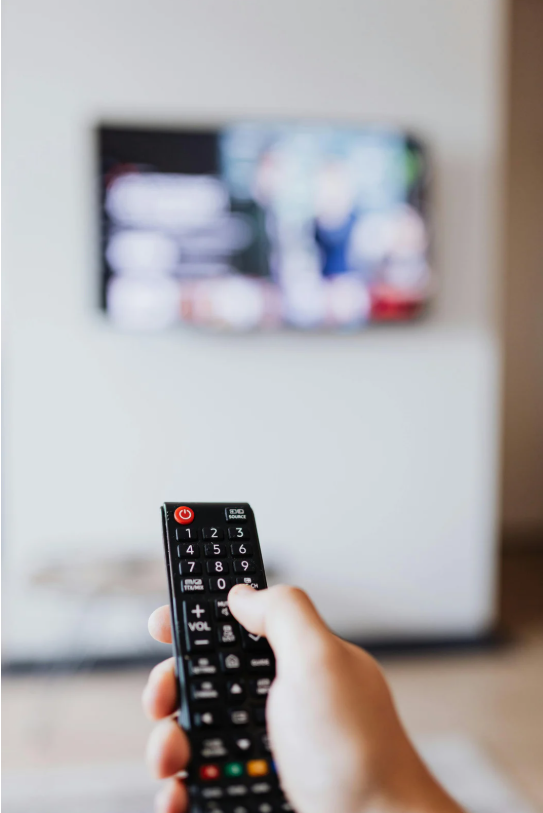
Turn off your TV using the remote, then unplug it from the power source for about 60 seconds. Plug it back in and turn it on again.
This soft reset clears temporary glitches that may be affecting the Netflix app.
Check Your Internet Connection
Streaming issues are often tied to poor connectivity. Test your connection by opening another app like YouTube or browsing the web on your phone.
If Netflix loads slowly or doesn’t open at all:
- Move your router closer to the TV.
- Reboot the router and modem.
- Use a wired Ethernet connection for more stability.
Try Streaming Netflix on Another Device
Open the Netflix app on your phone, tablet, or laptop. If it’s working elsewhere, the problem likely lies with your Samsung TV.
App-Specific Fixes for Netflix on Samsung TV
If your internet is fine and other devices are streaming normally, it’s time to look into app-related solutions.
Update the Netflix App
An outdated app can cause all sorts of errors. To update:
- Press the Home button on your remote.
- Go to Apps > Settings (gear icon).
- Select Netflix and check for updates.
If an update is available, install it and try opening the app again.
Reinstall Netflix
Sometimes, the app may be corrupted and needs a fresh install.
Steps:
- Navigate to Apps > Settings.
- Select Netflix and choose Delete.
- Head to the App Store on your TV and reinstall Netflix.
Log back in and see if that fixes the problem.
TV Settings and Software Fixes
If Netflix is still not working on your Samsung smart TV, your device settings may be the issue.
Update Samsung TV Firmware
Older firmware can cause compatibility issues with apps like Netflix.
To update:
- Go to Settings > Support > Software Update.
- Select Update Now.
- If an update is available, let the TV download and install it.
Your TV will restart automatically afterward.
Click here for the complete guide on updating your Samsung TV.
Reset Smart Hub
Resetting the Smart Hub returns your apps and settings to default, which can eliminate deeper software problems.
To reset Smart Hub:
- Go to Settings > Support > Device Care.
- Select Self Diagnosis > Reset Smart Hub.
- Enter your PIN (default is 0000) to confirm.
You’ll need to log back into Netflix and any other apps afterward.
Account and Server-Related Solutions
Still facing Netflix problems on your Samsung TV? It might be an issue beyond your device.
Check If Netflix is Down
Use websites like Is It Down Right Now or search “Is Netflix down?” on Twitter to see if others are experiencing outages.
If there’s a widespread issue, all you can do is wait until Netflix resolves it.
Sign Out and Sign Back In
Your Netflix account might be glitching. Signing out and logging back in can refresh your session.
Steps:
- Open the Netflix app.
- Go to the Menu > Get Help or Settings.
- Choose Sign Out, then log in again.
When All Else Fails: Factory Reset Your Samsung TV
If none of the above methods work, consider a full factory reset as a last resort. This erases all data, apps, and settings—restoring your TV to how it was out of the box.
To factory reset:
- Open Settings > General > Reset.
- Enter your PIN (default is 0000).
- Confirm and wait for the reset to complete.
Afterward, reinstall Netflix and check if it’s working.
Frequently Asked Questions (FAQs)
1. Why is Netflix showing a black screen on my Samsung TV?
A black screen usually means the app crashed or failed to load. Restart your TV and check for app or firmware updates. Reinstalling Netflix often helps.
2. Why does Netflix keep buffering or freezing on my Samsung Smart TV?
This is commonly due to a slow or unstable internet connection. Test your connection speed and consider using a wired connection for smoother playback.
3. How do I reset the Netflix app on my Samsung TV?
You can’t reset it directly, but uninstalling and reinstalling the app essentially does the same thing. You can also reset the Smart Hub, which affects all apps.
4. Is there a known issue between Samsung TVs and Netflix?
Occasionally, updates from Netflix or Samsung can cause temporary compatibility issues. These are usually resolved in future updates.
5. Can I use Netflix on an older Samsung TV model?
Yes, but older models may not support the latest Netflix updates. If your TV is from before 2011, you might need to use a streaming device like Roku or Fire Stick.
Final Thoughts
Dealing with Netflix not working on Samsung TV can feel like a major inconvenience, especially when you just want to relax and binge-watch something good. But with a little troubleshooting, you can usually get the app back up and running without calling tech support. From soft resets to firmware updates, these steps are all designed to help you regain control of your streaming setup.
If the issue continues even after trying everything, it might be time to reach out to Samsung or Netflix customer service. But for most users, the solutions above will do the trick.
Read Next: How to AirPlay to Samsung TV for Seamless Streaming

Leave a Reply