

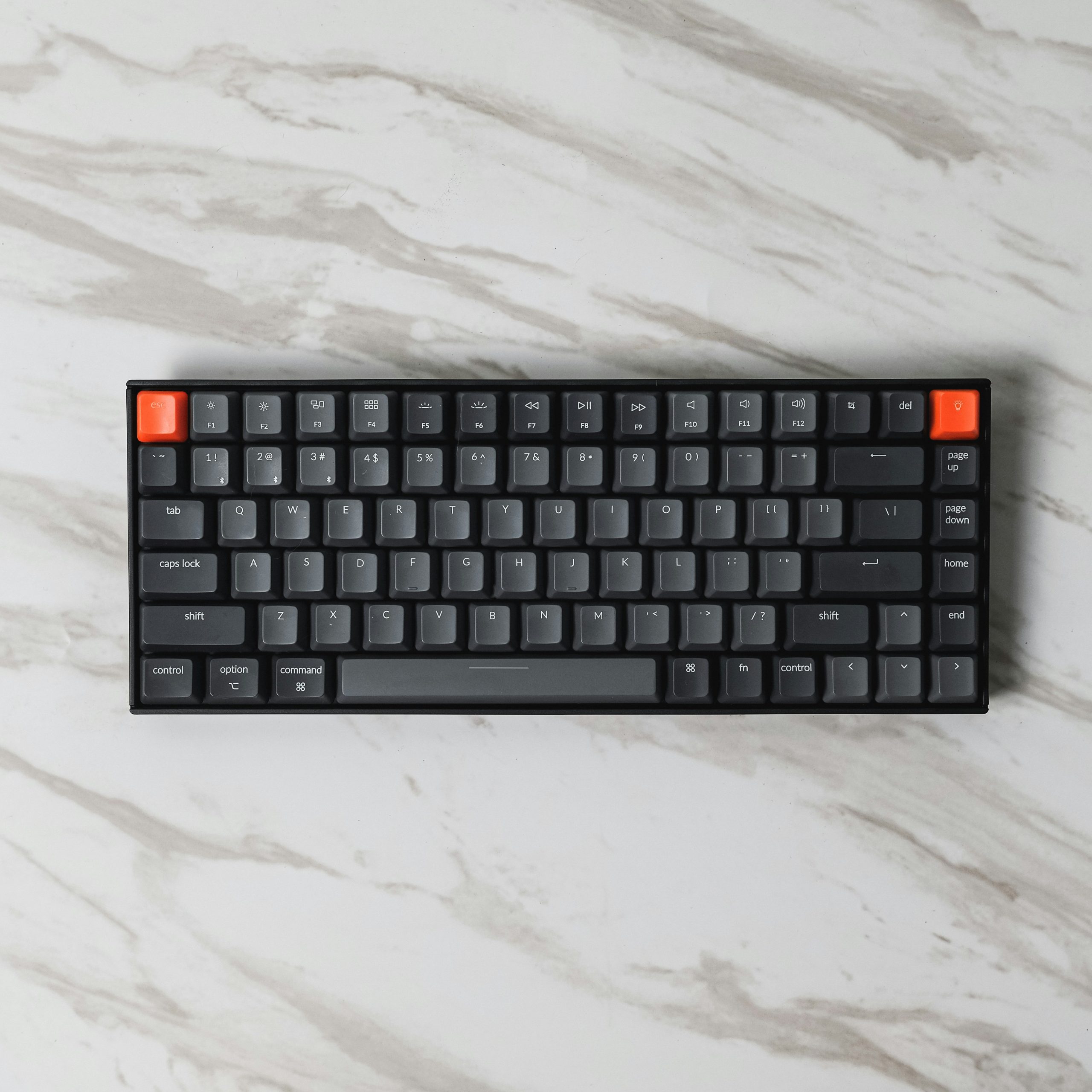
A Logitech keyboard is one of the easiest and most reliable peripherals you can use to boost productivity or enhance your typing experience. In this guide, we’ll walk you through how to connect a Logitech keyboard—no matter the model, port, or platform you’re working with. Whether you’re using a Windows PC, Mac, tablet, or smartphone, you’ll find a solution that works.
From wireless options using Bluetooth or a USB receiver to wired configurations, we’ll break it all down into clear, actionable steps.
Types of Logitech Keyboards and Connection Options
Before jumping into the setup steps, it’s important to understand the connection method your Logitech keyboard uses. This affects how you should proceed.
1. Unifying Receiver (USB Dongle)
Many Logitech keyboards ship with a small orange-logo USB dongle called the Unifying Receiver. This allows wireless communication through a 2.4GHz signal.
2. Bluetooth
Some newer Logitech models (like the K380, MX Keys, or K780) support direct Bluetooth connections, ideal for tablets and devices with limited ports.
3. Wired via USB
A few Logitech models use a traditional wired connection—just plug and play.
How to Connect Logitech Keyboard via Unifying Receiver

This is the most common method for desktop users or anyone using older laptops.
Step-by-Step Instructions:
- Insert the Unifying Receiver into a USB port on your computer.
- Turn on your Logitech keyboard. There’s usually a power switch on the side or bottom.
- Wait for automatic detection. Most modern operating systems (Windows, macOS) will recognize and install the keyboard instantly.
- Install Logitech Options (Optional). For advanced customization or pairing multiple devices, download Logitech Options.
Troubleshooting Tip:
If your keyboard isn’t working, try plugging the receiver into a different USB port or replacing the keyboard batteries.
How to Connect Logitech Keyboard via Bluetooth

This method is ideal for mobile devices, newer laptops, and MacBooks.
Step-by-Step Instructions:
- Turn on the keyboard.
- Put it in pairing mode.
- For most Logitech Bluetooth keyboards, hold the Bluetooth or “Connect” button until the LED starts blinking.
- On multi-device keyboards like the K380, press and hold one of the numbered keys (e.g., 1, 2, or 3) for three seconds.
- On your device, go to Bluetooth settings:
- Windows: Settings → Devices → Bluetooth & other devices → Add Bluetooth or other device.
- Mac: System Settings → Bluetooth → Turn On → Select keyboard from the list.
- iOS/Android: Settings → Bluetooth → Select your keyboard.
- Select the Logitech keyboard from the list and confirm pairing by typing the displayed code on your keyboard.
Note: Logitech Bluetooth keyboards often support multiple paired devices. Use the Easy-Switch keys to toggle between them.
How to Connect Logitech Keyboard via USB Cable (Wired Models)

This is the simplest and most plug-and-play method.
What to Do:
- Connect the USB cable from the keyboard to your computer.
- Wait for your OS to recognize and install the drivers.
- Start typing—you’re all set!
Optional: Some wired models include Logitech software for advanced configuration.
Extra Tips for Logitech Multi-Device Keyboards
Logitech’s multi-device keyboards (like MX Keys or K780) support up to 3 paired devices.
- Switch devices instantly using the Easy-Switch buttons (usually labeled 1, 2, 3).
- Pair each number with a different device. For example:
- 1 = Laptop
- 2 = Tablet
- 3 = Smartphone
To pair a second or third device, simply press and hold that number key until the light blinks, then repeat the Bluetooth pairing steps.
Frequently Asked Questions (FAQs)
1. Can I connect my Logitech keyboard to multiple devices?
Yes! Many Logitech Bluetooth keyboards support pairing with up to 3 devices using Easy-Switch buttons.
2. Why isn’t my Logitech keyboard connecting via Bluetooth?
Make sure the keyboard is in pairing mode and that Bluetooth is enabled on your device. Also, check if the keyboard battery needs replacement or charging.
3. What should I do if the Unifying Receiver isn’t working?
Try switching USB ports, updating your Logitech software, or replacing the battery in the keyboard.
4. Do I need to install software to use my Logitech keyboard?
Not necessarily. Most models are plug-and-play. However, installing Logitech Options allows for deeper customization.
5. How do I reset my Logitech keyboard?
Turn the keyboard off, remove and reinsert the batteries (if applicable), then re-pair it with your device using the appropriate method.
Conclusion
Learning how to connect a Logitech keyboard is a simple but essential skill, especially with the variety of devices we use today. Whether you’re pairing via USB, Bluetooth, or Unifying Receiver, Logitech’s plug-and-play functionality makes it quick and intuitive.
Once you’re connected, you can enjoy responsive typing, seamless switching between devices, and even advanced customization through Logitech Options.
Read Next: How to Connect AirPods to Laptop: A Complete Guide


Leave a Reply