
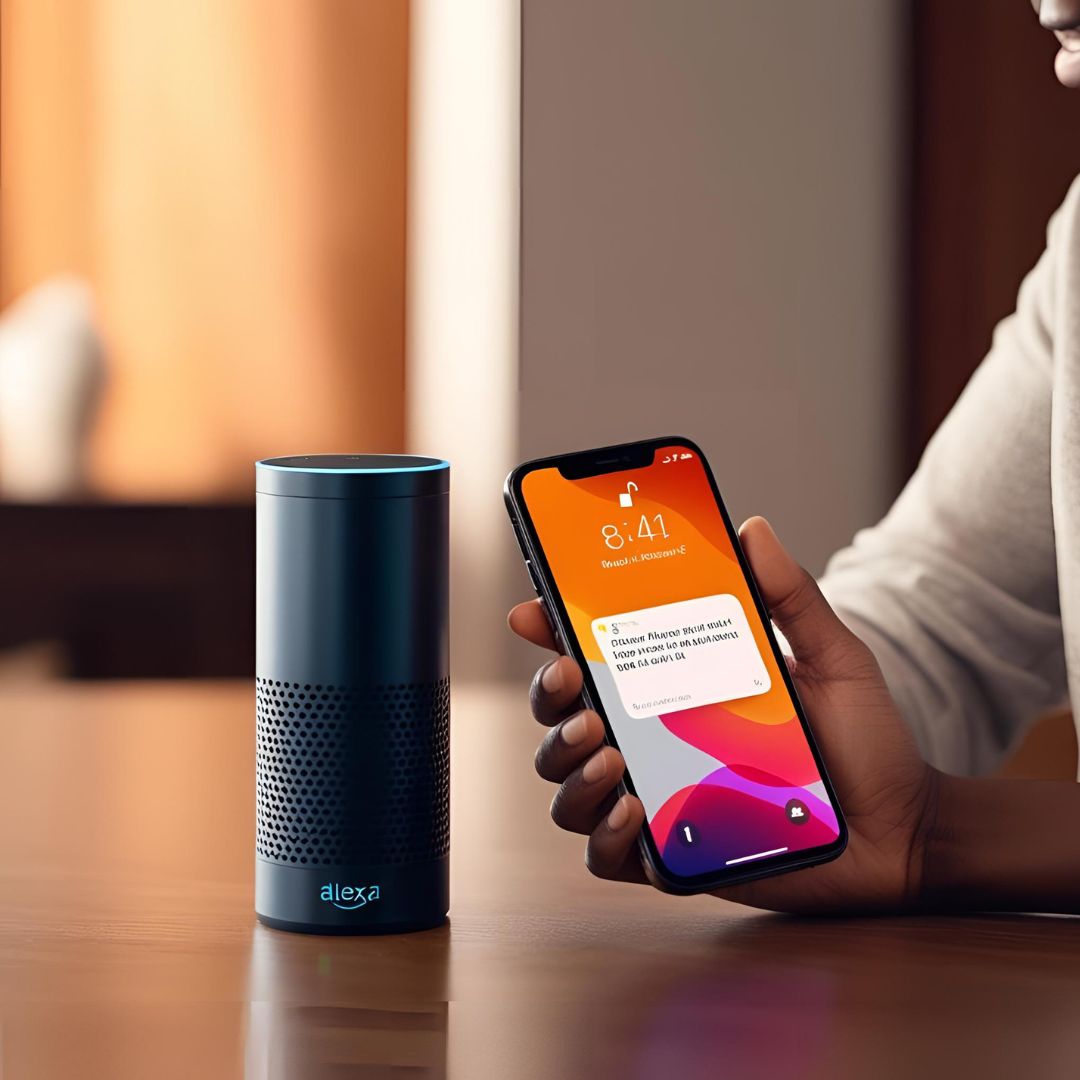
Ever wondered how to connect Alexa to iPhone without getting lost in a maze of confusing settings and tech jargon? You’re not alone. Whether you’ve just unboxed your Echo Dot or you’ve had an Alexa-enabled speaker for a while and want to sync it with your iPhone, you’ve landed in the right place.
In this guide, we’ll walk you through everything you need—from choosing the right Alexa device to pairing it with your iPhone using different methods. It’s simpler than you think, and once you’re connected, you’ll unlock a whole new level of smart home convenience.
First Things First: Know Your Alexa Device
Before we dive into the steps, let’s quickly talk about the different Alexa-enabled devices available. Choosing the right model makes a big difference depending on what you want to do—whether it’s playing music, controlling smart devices, or even video calling.
Popular Alexa Models You Can Connect to iPhone
Here are some Amazon Echo models you might be using (or considering):
| Model | Features | Amazon Link |
|---|---|---|
| Echo Dot (5th Gen) | Compact, great for small rooms, clear sound | Buy on Amazon |
| Echo (4th Gen) | Premium sound, smart hub built-in | Buy on Amazon |
| Echo Show 5/8/10 | Smart display with video calling | Buy on Amazon |
| Echo Studio | High-fidelity audio with spatial sound | Buy on Amazon |
Make sure your device is powered on and within range of your Wi-Fi and iPhone before starting the connection process.
Method 1: Connect Alexa to iPhone Using the Alexa App
This is the most reliable method and the one recommended by Amazon itself.
Step-by-Step Instructions
- Download the Alexa app from the App Store on your iPhone.
- Open the app and sign in with your Amazon account.
- Tap “Devices” at the bottom right corner of the screen.
- Tap the “+” icon in the top-right corner, then select “Add Device”.
- Choose your Echo model from the list and follow the setup prompts.
- Once connected to Wi-Fi, Alexa will be linked to your Amazon account and ready to interact with your iPhone.
Tip: If your iPhone doesn’t detect the Alexa device, reset the Echo and try again. A solid orange light means it’s in pairing mode.
Method 2: Connect Alexa to iPhone via Bluetooth
Maybe you just want to play music from your iPhone through Alexa. You can easily do this via Bluetooth.
How to Pair Your iPhone with Alexa
- Say: “Alexa, pair Bluetooth” or “Alexa, turn on Bluetooth.”
- On your iPhone, go to Settings > Bluetooth and look for your Echo device under “Other Devices.”
- Tap on the device name to connect. Alexa will confirm the connection.
Now you can stream audio, podcasts, or any app sounds from your iPhone directly through your Alexa speaker.
Method 3: Use Alexa with iPhone Apps (Like Apple Music & Reminders)
Did you know you can link your iPhone apps like Apple Music, Apple Calendar, and Reminders to your Alexa?
Here’s How to Link Apple Services:
- Open the Alexa app.
- Tap More > Settings > Music & Podcasts.
- Select Apple Music, then log in with your Apple ID.
- To add Reminders or Calendars, go to Settings > Calendar & Email > Apple.
Pro Tip: You’ll need to enable two-factor authentication for this to work.
Troubleshooting Tips if Alexa Won’t Connect to iPhone
Here are a few quick fixes if you’re having issues:
- Restart both your iPhone and Alexa device.
- Make sure your Wi-Fi is stable and the Echo device is connected.
- If using Bluetooth, forget the device on iPhone and pair again.
- Try resetting your Alexa device (usually by holding the action button for ~20 seconds).
Still stuck? Uninstall and reinstall the Alexa app. That usually solves 90% of app-related bugs.
Bonus: What You Can Do After You Connect Alexa to Your iPhone
Once the connection is set up, your iPhone and Alexa can work together like a dream team:
- Ask Alexa to call or text contacts using your iPhone number (via Alexa Communication).
- Add shopping list items via voice and access them later on your iPhone.
- Control smart home gadgets and routines from your iPhone or with your voice.
- Use Alexa as a hands-free speaker for Zoom or FaceTime audio.
Recap: How to Connect Alexa to iPhone in a Nutshell
To sum it up, how to connect Alexa to iPhone really depends on what you want to achieve—whether it’s controlling smart devices, streaming music, or managing your calendar. Use the Alexa app for full integration, Bluetooth for audio streaming, and in-app linking for advanced features.
And don’t forget to check out the latest Alexa devices if you’re ready to upgrade or start fresh:
✅ Get the Echo Dot here
✅ Echo Show with display for video calling
Got questions? Drop them in the comments below—I’d be happy to help you get your smart home sorted.
Read Next: How to Connect Your Phone to Your Computer

Leave a Reply